Sensitivity decides how far your view moves when you swipe, and it has as much influence on aim as any graphics option. Players often change sensitivity while their real problem is unstable performance, so the two topics belong together.
This guide explains sensitivity in simple terms, how it interacts with the smooth gameplay ZenHub GFX is used for, and a practical method for finding values that fit your hand, your phone, and your main game. The ZenHub GFX for Android page carries the download package and full app details.
What Sensitivity Actually Controls
Sensitivity controls the relationship between your finger movement and the camera. High sensitivity turns the view quickly with short swipes; low sensitivity needs longer swipes but allows finer corrections.
Most shooters split sensitivity into camera sensitivity for looking around, ADS sensitivity for aiming down sights, and gyroscope sensitivity for tilt aiming. Each deserves separate attention.
Think of sensitivity as a language between hand and game. Fluency comes from stable grammar, which is why every recommendation here assumes your performance settings stop changing first.
Write values down before changing them, so any experiment can be undone exactly; memory is a notoriously creative historian.
Why Performance Changes How Sensitivity Feels
When frame rate is unstable, the same swipe produces different results from moment to moment, so sensitivity feels wrong even when the numbers are fine.
Before judging sensitivity, make the game steady with sensible graphics and FPS choices. A stable frame rate makes sensitivity testing honest, because every swipe behaves the same way.
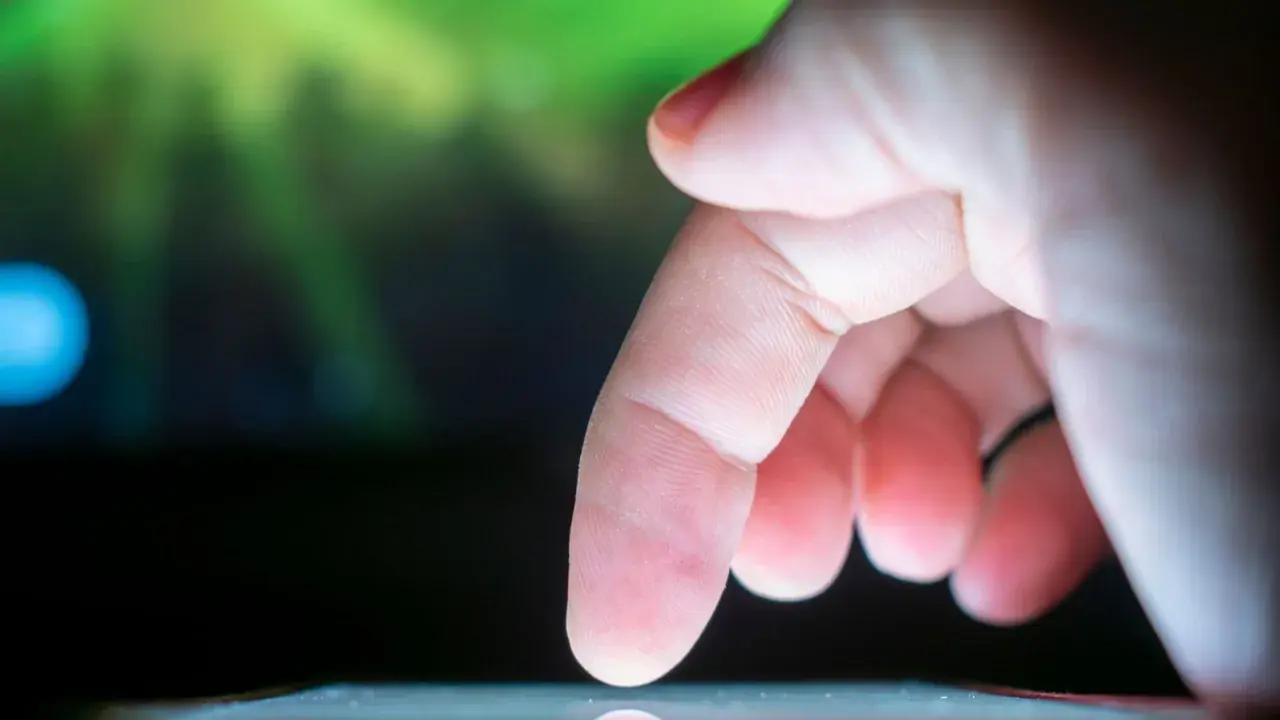
A fingertip detail: playing with a slightly moist thumb increases friction and shortens effective swipes. Many players use a thumb sleeve for consistency, and any consistency tool makes sensitivity behave more predictably.
Test new values against bots first if pride is at stake; the drills care about data, not dignity.
Camera Sensitivity for General Movement
Camera sensitivity controls free looking while running and scanning. It should be fast enough to check corners and react to sounds behind you, but not so fast that ordinary movement becomes shaky.
A good test is turning 180 degrees in one comfortable swipe. If you consistently overshoot or fall short, adjust in small steps until the turn lands naturally.
If you play lying down or on a moving vehicle, your effective sensitivity changes because your grip and gravity change. Keep expectations realistic for those sessions and save judged testing for your normal posture.
One often-missed variable is thumb travel distance: rest your thumb nearer the stick's centre and small sensitivities feel larger instantly.
ADS Sensitivity for Each Scope Range
ADS sensitivity applies while aiming, and many games let you set it per scope level. Close-range red dot aiming usually feels best slightly lively, while high scopes need calmer values for small corrections.
Change scope sensitivities in proportion. If your red dot feels right but the 6x scope jumps around, lower only the high-scope value instead of rebuilding the whole setup.
Small phones force shorter swipes, which pairs naturally with slightly higher camera values; large phones and tablets allow longer swipes and often feel better a step lower. Screen size is a settings input, not a detail.
If a friend insists your values are wrong, ask which device they tuned theirs on; the conversation usually ends there. ZenHub GFX Lag Fix Guide for Low-End Android Devices covers this in more detail.
Gyroscope Sensitivity Basics
Gyroscope aiming moves the view when you tilt the phone. It is excellent for fine recoil control because your hands make tiny adjustments while your thumb keeps firing.
Start with moderate gyro values and raise them gradually over days, not minutes. Gyro skill builds with repetition, and jumping straight to very high values usually makes aim worse at first.
When a game offers per-weapon or per-vehicle sensitivity, leave them at defaults until the main groups feel right. Sub-settings multiply confusion when the foundation is unsettled.
Seasoned players re-tune by percentage, not by leaps: five percent changes are felt clearly without destroying calibration.
Finding Your Values With a Simple Routine
Use the training ground for ten minutes: track a moving target, practise flicking between two points, and spray at a wall to see your recoil pattern.
Adjust one sensitivity group by a small amount, repeat the same drills, and keep notes. Two or three focused sessions will find your range far better than copying a settings list from a video.
Record a short clip of your own gameplay monthly. Watching your aim from outside reveals overcorrection and hesitation that are invisible while playing, and it tells you which direction a small adjustment should go.
Warm up for three minutes before judging anything; cold hands deliver verdicts that warm hands would appeal.
Sensitivity on Different Screen Sizes
A swipe covers different in-game distance depending on screen size and resolution. The same numbers can feel slow on a large tablet and fast on a compact phone.
When you change devices, expect to retune. Keep your old values as a starting point, then repeat the training drills rather than assuming the setup transferred perfectly.
Sensitivity interacts with frame time more than players expect: identical numbers feel faster on a high-refresh device because the view answers sooner. Retune briefly after any hardware change, even an upgrade.
The best sensitivity is the one you stop noticing, because attention has moved from the controls to the game.
DPI and Touch Settings on Android
Some Android phones offer touch sensitivity options, pointer speed, or a glove mode. These system settings change how the screen reads your finger and can interact with game sensitivity.
Change one layer at a time. If the game sensitivity is stable, leave system touch settings alone; stacking changes makes it impossible to know what helped.
If your aim shakes at the end of long sessions, fatigue is changing your hands. Slightly lower values forgive tired hands better than aggressive ones, which is worth knowing before a tournament evening.
Keep tournament and casual values identical; splitting them splits your practice in half. ZenHub GFX Graphics Settings Explained for Beginners explains this side of the topic in full.
Common Sensitivity Mistakes
Copying a professional player's sensitivity is the classic error. Pros use specific devices, grips, and thousands of hours of practice; their numbers are a reference, not a prescription.
Changing sensitivity every day is another trap. Aim depends on muscle memory, and constant changes prevent that memory from forming. Settle on values and give them at least a week.
Do not chase the feeling of a single great match. Variance guarantees occasional magic on any settings; your average across ten matches is the honest scoreboard for a sensitivity change.
A cracked or greasy screen rewrites your sensitivity daily; cleanliness is the cheapest calibration there is.
Sensitivity for Different Game Types
Fast arena shooters reward higher camera sensitivity for constant turning, while tactical battle royale play rewards calmer ADS values for long-range fights.
If you play several games, keep a short note of the values that work in each. ZenHub GFX profiles handle graphics per game; your notes do the same job for sensitivity.
Players switching from controller to touch often start far too low, expecting resistance that touch does not have. Begin near the middle of the range and let the drills move you.
Revisit after any major hand injury or long break without shame; the values serve the hand, not the reverse.
When to Revisit Your Settings
Revisit sensitivity after changing phones, after a major game update that alters aiming, or when your role changes, for example moving from support play to entry fragging.
Small seasonal adjustments are healthy. Constant rebuilding is not. Treat sensitivity like a home you decorate occasionally, not a hotel you move into every night.
Keep a dated note of final values for each game. When an update resets them, as updates love to do, the note converts a ruined evening into a two-minute repair.
When two values both feel plausible, choose the lower for a week; control compounds better than speed for most players.
Conclusion
Sensitivity is personal: it depends on your device, grip, game, and habits, and it only becomes reliable once performance is stable enough for every swipe to behave the same. Build that stability first, then tune camera, ADS, and gyroscope in small steps with honest training drills.
Give the final values time to become muscle memory before judging them. Most players who follow that patient process end up with aim that feels boringly predictable, which is exactly what good sensitivity should feel like. Readers can find the full breakdown in ZenHub GFX Graphics Settings Explained for Beginners and ZenHub GFX FPS and Smooth Gameplay Optimization Guide.