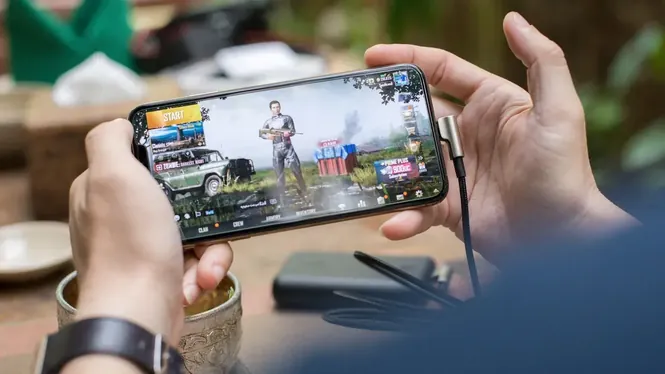

A phone that gets hot while gaming is not just uncomfortable: heat makes the processor slow down, the screen sometimes dims, and the battery ages faster. Overheating is the hidden reason many games feel smooth at first and rough twenty minutes later.
This guide explains why gaming heat builds up, how ZenHub GFX settings influence it, and the practical steps that keep a phone cool enough to perform for a whole session. The ZenHub GFX official site page carries the download package and full app details.
Why Phones Heat Up During Games
Games push the processor and GPU continuously, unlike most apps that work in bursts. Continuous work means continuous heat, and a thin phone body has limited ways to release it.
Some warmth is normal. The warning signs are heat you cannot comfortably hold, sudden frame drops, automatic brightness reduction, or a system temperature warning.
Temperature warnings should never be dismissed as drama. They mark the point where protection systems start deciding your performance for you, which is always worse than deciding it yourself in advance.
A phone cooling pad used inconsistently is decor; the routine matters more than the gadget, so build the routine first.
Thermal Throttling Explained Simply
When internal temperature crosses a limit, Android slows the chips to protect them. This is thermal throttling, and it is why performance falls even though your settings never changed.
Preventing throttling is mostly about reducing sustained load or improving cooling, which is why settings and environment both appear in every serious fix.
A phone that cools quickly between matches is healthy; one that stays hot for half an hour after light use is telling you something, and that message deserves investigation rather than another settings change.
If the back of the phone is hottest near the camera block, that is the processor's neighbourhood on most designs, and your grip should avoid camping there.
Lower the Sustained Load
Resolution and frame rate set the sustained workload. One step down in either gives the GPU breathing room, and the phone reaches a stable temperature instead of climbing until it throttles.
For long sessions, choose settings your phone can hold at a steady temperature for an hour, not settings that impress for five minutes.
Direct airflow beats ambient coolness: a phone in a warm room with a fan pointed at it often runs cooler than a phone in a cold room sitting on a blanket. Movement of air is the operative ingredient.
Short breaks are cooling events: five minutes of rest can return a surprising amount of thermal headroom.
The Case and Your Hands
Thick cases insulate the phone like a coat. Removing the case during long gaming sessions is a free and surprisingly effective cooling step.
How you hold the phone matters too. Covering the whole back with warm palms blocks airflow; a simple stand or controller grip keeps hands away from the hot zones.
Metal and glass backs shed heat better than plastic, which partly explains why two phones with the same chip can behave so differently in long sessions. Hardware sympathy matters when choosing your next device.
Never stack the phone on a warm laptop or console while it charges before a session; borrowed heat is still heat. ZenHub GFX FPS and Smooth Gameplay Optimization Guide explains this side of the topic in full.
Room, Sun, and Surface
A phone gaming on a bed in a warm room starts with three disadvantages: hot air, no airflow, and a soft surface trapping heat underneath.
Play at a desk or table where possible, keep the phone out of direct sunlight, and never leave it gaming on soft bedding. A small fan aimed at the player cools the phone as a side effect.
If you play competitively at fixed times, pre-cool the phone by resting it unused, unplugged, and case-free for fifteen minutes beforehand. Athletes warm up; gaming phones, amusingly, cool down.
Temperature is information about workload: when a light game heats like a heavy one, suspect the install or a background process before the weather.
Charging Heat on Top of Gaming Heat
Fast charging generates its own heat, and stacking it under gaming heat is the quickest route to throttling.
Charge before the session when you can. If you must charge while playing, use a standard-speed charger and lighter settings, and accept a warmer phone as the cost.
Beware of gaming in a parked car or tent: enclosed sunlit spaces turn a normal session into an oven test that no settings profile can pass. Shade and airflow are competitive equipment outdoors.
Sunlight through a window counts fully; glass does not protect electronics from a hot afternoon.
Background Load Adds Heat
Background downloads, video processing, hotspot sharing, and cloud backups all add processor work and therefore heat during your game.
A two-minute cleanup before playing, closing heavy apps and pausing big transfers, lowers the temperature baseline your game starts from.
Some performance overlays report actual device temperature. Watching that number during tests converts superstition into engineering: you learn exactly which setting buys how many degrees.
A spare older phone for hotspot duty keeps your gaming phone's radio, and therefore its temperature, out of the sharing business.
Screen Brightness and Heat
The display produces heat as well as consuming power. Maximum brightness in a dark room is both unnecessary and thermally expensive.
Comfortable brightness for your actual lighting is one of the easiest heat reductions, and it extends battery life at the same time.
Long downloads and updates also generate heat. Schedule them away from gaming sessions so the phone does not begin a match already carrying the warmth of installing three other games.
If throttling arrives at the same match minute repeatedly, your session settings sit exactly at the thermal cliff; one step back buys the whole evening. Readers can find the full breakdown in ZenHub GFX Lag Fix Guide for Low-End Android Devices.
When Heat Points to a Problem
If one game heats the phone far more than similar games, suspect a badly optimised title, a corrupted install, or a background fault rather than your settings.
If every app overheats the phone quickly, check for a swollen battery or failing hardware. A battery that bulges or a phone that heats while idle needs professional attention, not settings changes.
When travelling, aeroplane cabins and trains combine warmth, weak signal, and charging from low-power ports: a perfect storm. Offline games and modest profiles exist for exactly these journeys.
Comfort is data: if you keep adjusting your grip, the phone is reporting its temperature through your hands.
Cooling Accessories: What Helps
Simple phone cooler fans that clip to the back genuinely reduce surface temperature and can delay throttling in long sessions.
Expensive gimmicks are less reliable. A basic fan, a stand, and sensible settings outperform most novelty cooling products at a fraction of the price.
Keep perspective on normality: a phone that is warm during a heavy game is working as designed. Intervention is for heat that changes behaviour, comfort, or battery decisions, not for the mere presence of warmth.
Professional reviewers test sustained loads for a reason; imitate them at home with one long session before trusting a profile.
A Cool-Running Session Routine
Start cool: charge beforehand, remove the case, close background apps, pick session-length settings, play on a hard surface in moving air, and take short breaks in marathon sessions.
None of these steps is dramatic alone. Together they routinely turn a phone that throttles in twenty minutes into one that plays steadily for hours.
Write down the combination that finally works for your phone and your rooms. Cooling is local knowledge, and your notes capture the specifics no general guide can guess.
Cool first, tune second, in that order, whenever both are on the table.
Conclusion
Overheating while gaming is a load problem meeting a cooling problem, and you control both sides of that meeting. Sensible ZenHub GFX settings reduce the load; case, surface, airflow, and charging habits handle the cooling.
Treat the first sign of throttling as information, not bad luck. Adjust one factor, test a full session, and you will find the combination that keeps your particular phone in its comfortable zone. Readers can find the full breakdown in ZenHub GFX Lag Fix Guide for Low-End Android Devices and ZenHub GFX FPS and Smooth Gameplay Optimization Guide.